
How to automate customer support in your SaaS
Six steps, in the order that keeps answers right.
Automate the questions your docs already answer, then the ones only a customer’s own account can answer, and hand everything else to your team. Test it on your own app before customers do.
14-day free trial · 50 AI conversations · no card
Answer from your docs
Product knowledge
Answer from their account
Signed-in customer + a snapshot or a fresh read
Hand to your team
A human decision
Which plan am I on? · SnapshotFrom the signed snapshot: the small set of account facts your server shares when the customer is identified.
Pick a question to see why.
What should you automate first?
The questions you answer the same way every week. They’re the safest to automate, because the answer is already written down.
- Read through a recent month of conversations or tickets and group them by question, not by customer.
- Mark the groups your docs, help center or website already answer. That’s your first automation.
- If a frequent answer isn’t written down anywhere, write it once in your docs. The agent can only be as right as its sources.
What the agent can learn from
- Your website — refreshed automatically
- A public Help Center, Intercom’s included (up to 300 pages per run)
- Google Docs, Sheets and Slides — edits arrive in seconds
- PDF, DOC, DOCX, XLSX, CSV and TXT files, and notes
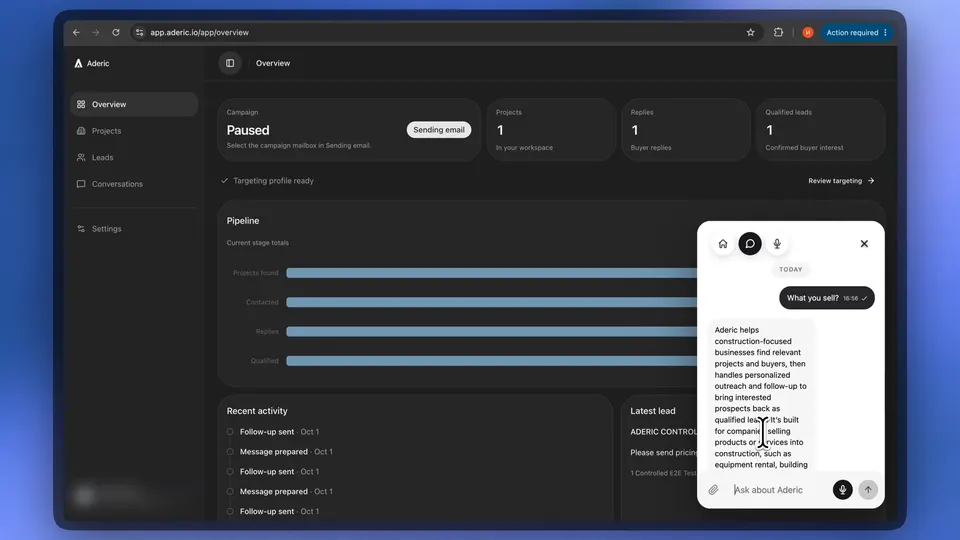
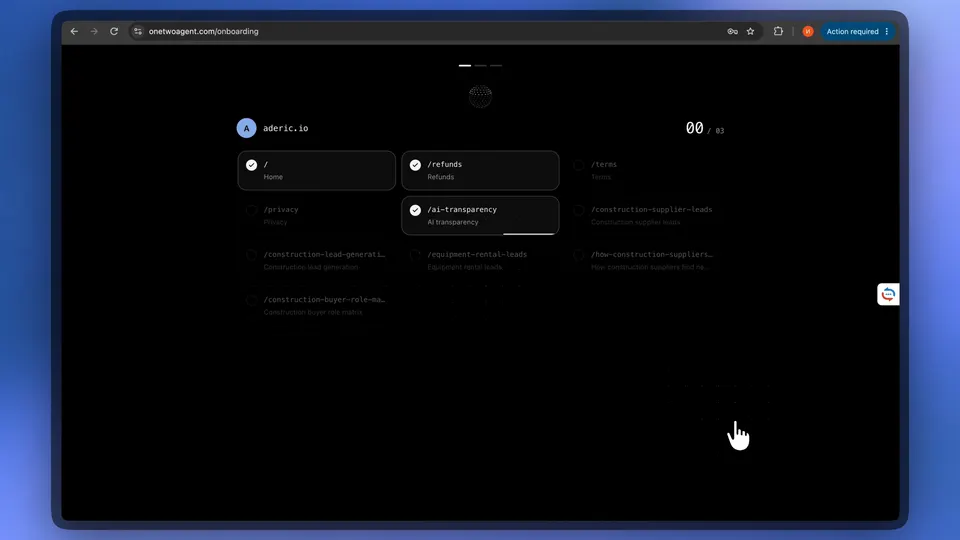
Done when Your top repeat questions are answered from a source you can point to.
Which questions need the customer’s account?
In a SaaS product the hardest tickets are about one customer’s own state: their plan, their usage, a job that failed. Your docs can’t answer those, and a guess is worse than no answer.
Docs are enough
- How do I export a report?
- Which plan has SSO?
- Where do I add a webhook?
Needs their account
- Why did my export fail?
- Am I over my limit?
- Is my integration connected?
Know who is asking
Your server confirms the signed-in customer and signs that identity. Account answers use only that server-confirmed identity, and an email typed into the chat doesn’t change it. The identity token is short-lived (15 minutes).
Snapshot: share only what you choose
A small signed snapshot of the facts you pick (subscription, access, usage, jobs and integrations), at most 5 minutes old. It shows what was true when it was signed — enough for “which plan am I on?”.
Fresh read: check the current state
When the answer depends on right now — a job that just failed, usage after today’s import — one read-only endpoint in your backend answers for that customer, re-checking their session. Up to 8 support views you define.
OneTwoAgent never gets database access, and it doesn’t change anything in your app: reads only, for the signed-in customer who is asking.
How account-aware support works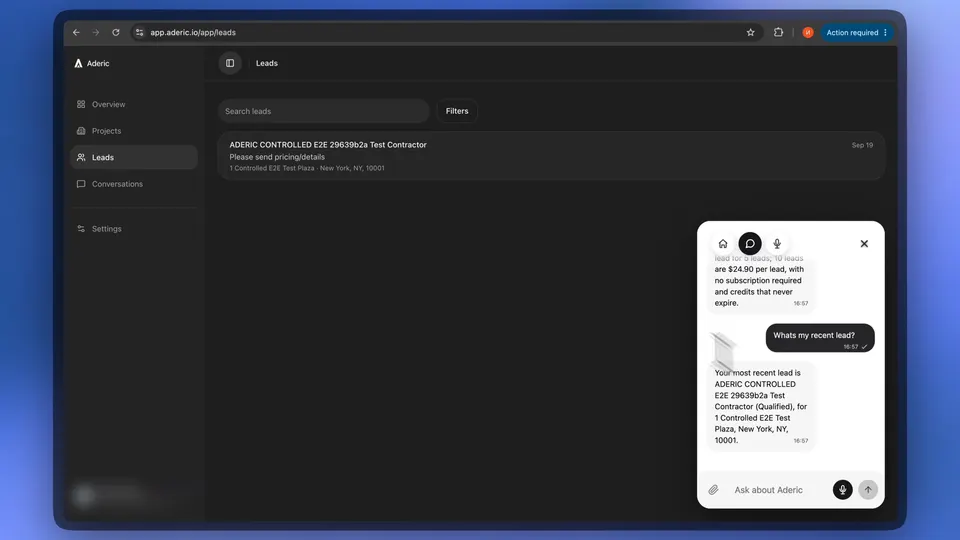
The walkthrough shows an answer from the signed-in customer’s account. It doesn’t show a fresh read on its own.
Done when A signed-in customer asks about their own account and gets their own answer — and a second customer can’t see it.
When does a person step in, and what do they see?
Automation is only safe if it knows when to stop. Decide what always goes to a person — refunds, exceptions, anything the customer asks a human for — and let the agent stop when it doesn’t have the evidence or the authority.
- CustomerCan I talk to a human?
- OneTwoAgentThe agent stops. No scripted “a human will reply” message.
- InboxMarked Needs reply · Waiting on team. Where notifications are set up, your team gets one.
- Your teamA teammate clicks Take over: the AI pauses for this conversation, and they reply with the full thread in front of them, files and voice notes included.
- CustomerWhen a teammate takes the conversation with Take or Take over, the widget shows “{name} joined the conversation”.
- OneTwoAgentResume AI hands it back. The widget shows “Assistant resumed” when the AI answers again.
- Take over is a separate manual mode: the AI stays silent in that conversation until someone clicks Resume AI.
- A reply sent without Take over is an ordinary reply, not a takeover. Depending on your settings it can pause the AI for a set time, but it doesn’t hold the conversation until Resume AI.
- Assigning a conversation sets who owns it; on its own it isn’t a takeover. Assignment changes show live for the whole team.
- Waiting on team describes the conversation, not who is online — nothing tells the customer a person is on the way.
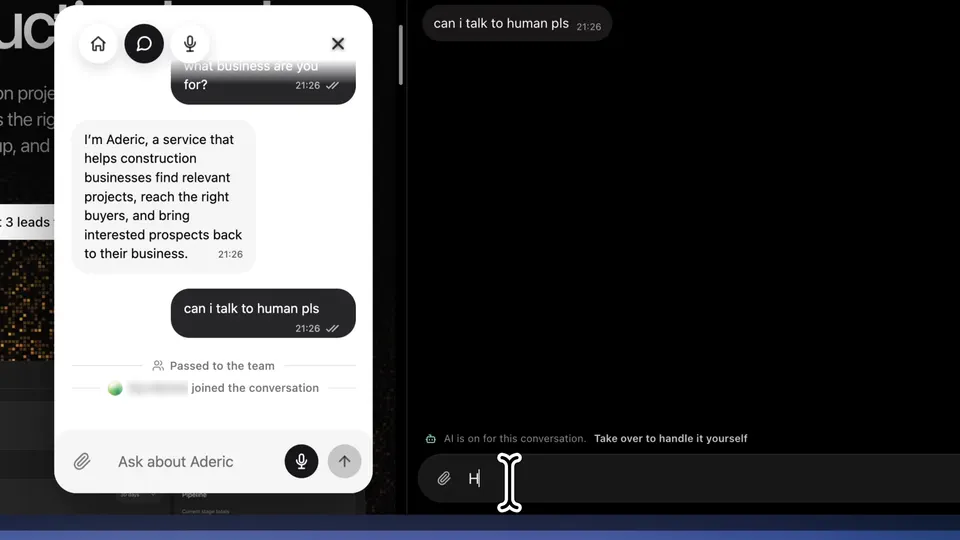
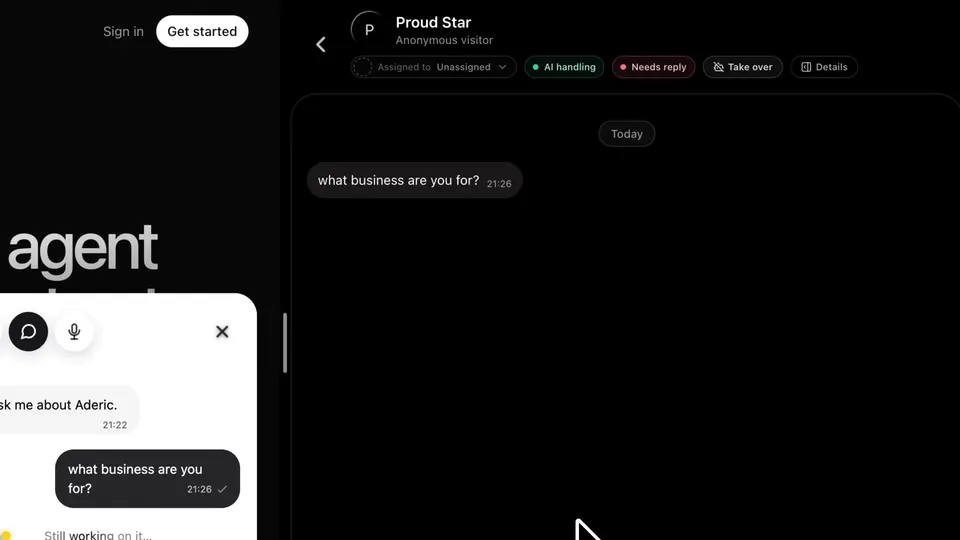
Done when “Can I talk to a human?” reaches your inbox marked for the team, and a teammate can take it from there.
How do you set it up?
Two parts. The first takes no code; the second is a job for your coding agent.
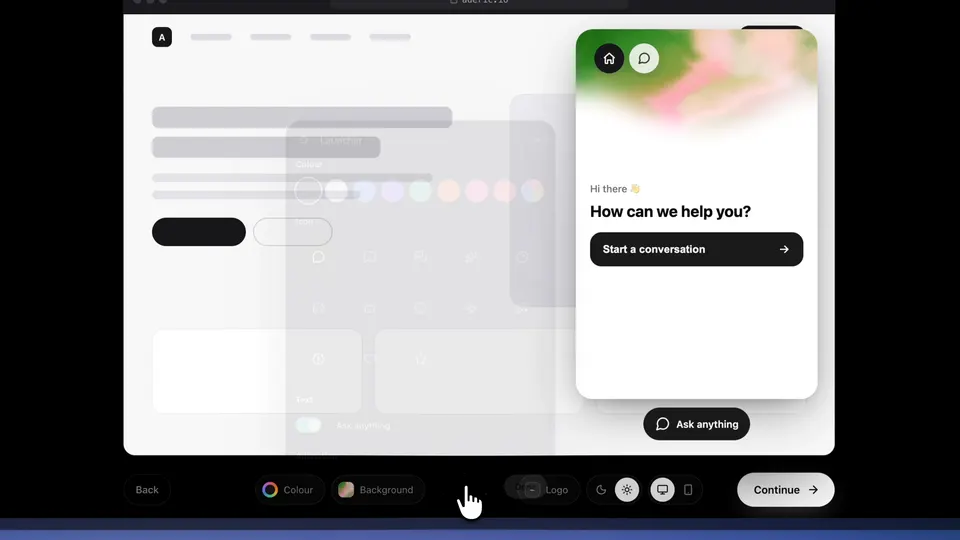
Onboarding — no code
Add your website so the agent learns your product, then style the widget. Docs answers start working as soon as the widget is on your site.
Install & Connect — your coding agent
In Channels → Widget → Install & Connect, copy one command and one sentence. Run the command and approve the connection in your browser; then your coding agent (Claude Code, Codex, Cursor or another) adds the widget to your app, connects your existing sign-in and builds the read-only account endpoint. You approve which account data it may read, it deploys the way your repository already deploys, and doctor verifies production.
# you run
npx -y @onetwoagent/cli@latest init --browser

# you tell your coding agent
Integrate OneTwoAgent fully into this app and deploy it. Use the installed OneTwoAgent skill and finish by verifying production.

# it verifies production
npx -y @onetwoagent/cli@latest doctor --json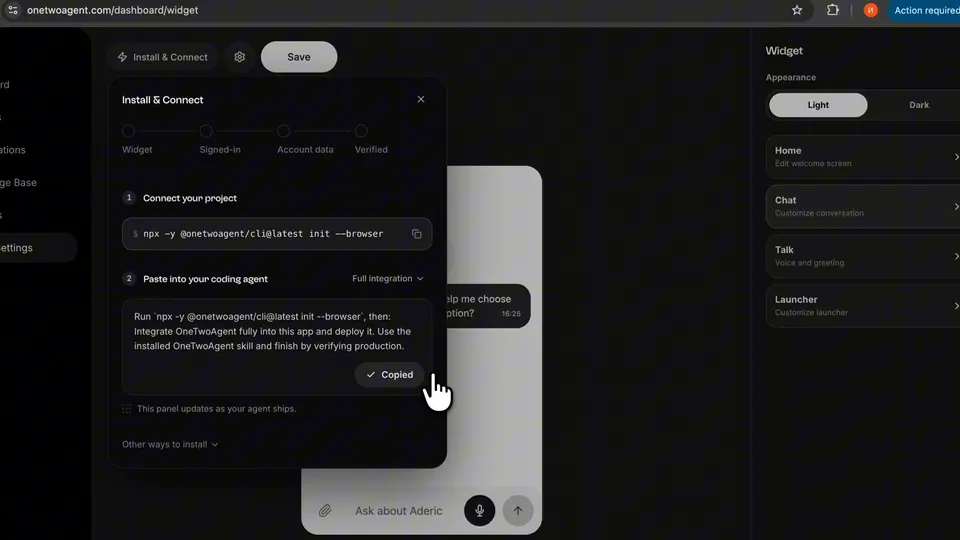
Install & Connect turns green only on production evidence
- WidgetSeen rendering on your own domain
- Signed-inA real identified conversation
- Account dataA successful read from your backend
- VerifiedAll three working, no open issues
Configuration alone never counts as done. When we connected it to aderic.io, Claude Code finished in about 10 minutes — our experience, not a promise for every codebase.
Prefer to read a finished integration first? Our open-source Next.js starter
Signed-in customers and account data docsDone when Install & Connect shows Verified for your production app.
How do you test it on your own app?
Before customers rely on it, sign in to your own product and ask the questions your customers ask. Each one should land in the right lane.
| Ask | Expect |
|---|---|
| A question your docs answer | A docs answer, in the language you asked in. |
| A question your snapshot covers, like your plan | Your own value, from the signed snapshot. |
| Change something, then ask about it — run an import, then ask why it failed | The current state, from a fresh read of your backend — not the older snapshot. |
| The same question, signed in as another customer | Their answer, not yours. |
| Something your docs don’t cover | No guess: it stops and marks the conversation for your team. |
| “Can I talk to a human?” | Handed to your team, with no scripted promise to the customer. |
| A screenshot of an error | It reads the image as context for the answer. |
Done when Every test question lands in the lane you expected, and you’ve read the answers yourself.
What happens outside working hours?
The agent answers whenever a customer writes. What it can’t answer waits for your team — it doesn’t pretend someone is on the way.
While your team is in
The agent answers first; teammates read along and take over when they need to.
While your team is out
Docs and account questions still get answered. Handoffs stay marked Needs reply until someone is back.
When your team is back
Filter the inbox by Unassigned, take the open conversations and reply with the full thread in front of you.
- Every channel works the same way: the website widget, WhatsApp, Instagram and Telegram, in one inbox.
- WhatsApp follows Meta’s 24-hour customer-service window: an answer the next day may need a template message.
- There is no live person at 3 a.m. unless your team is there — and the agent never says otherwise.
Done when Your team knows where the overnight handoffs are, and who takes them in the morning.
Questions
Can you automate customer support completely?
No, and you shouldn’t try. Automate the questions your docs and the customer’s own account can answer; hand refunds, exceptions and anything the customer asks a person for to your team.
Do I need a developer to automate customer support?
Not to start: answers from your docs need only onboarding and the widget on your site. Answers about a signed-in customer’s account need your app to vouch for who is asking and a read-only endpoint, which your coding agent builds from one prompt.
Will the AI answer customers at night?
Yes, whenever a customer writes. What it can’t answer is marked for your team and waits until someone takes it; the customer isn’t told a person is on the way.
Is it safe to give AI support access to account data?
It never gets database access. Your backend shares a small signed snapshot of the facts you choose and, for current state, answers read-only requests for the signed-in customer who is asking, re-checking their session — up to 8 support views you define. No refunds, plan changes or other writes.
How much does it cost to automate support with OneTwoAgent?
Plans start at $19 a month for 100 AI conversations, with unlimited teammates; one AI conversation covers up to 10 AI replies. The free trial is 14 days with 50 AI conversations, no card required.
Start with the questions your docs already answer.
Add your website, put the widget on your site, then connect signed-in customers when you’re ready. 14-day free trial with 50 AI conversations, no card required.